
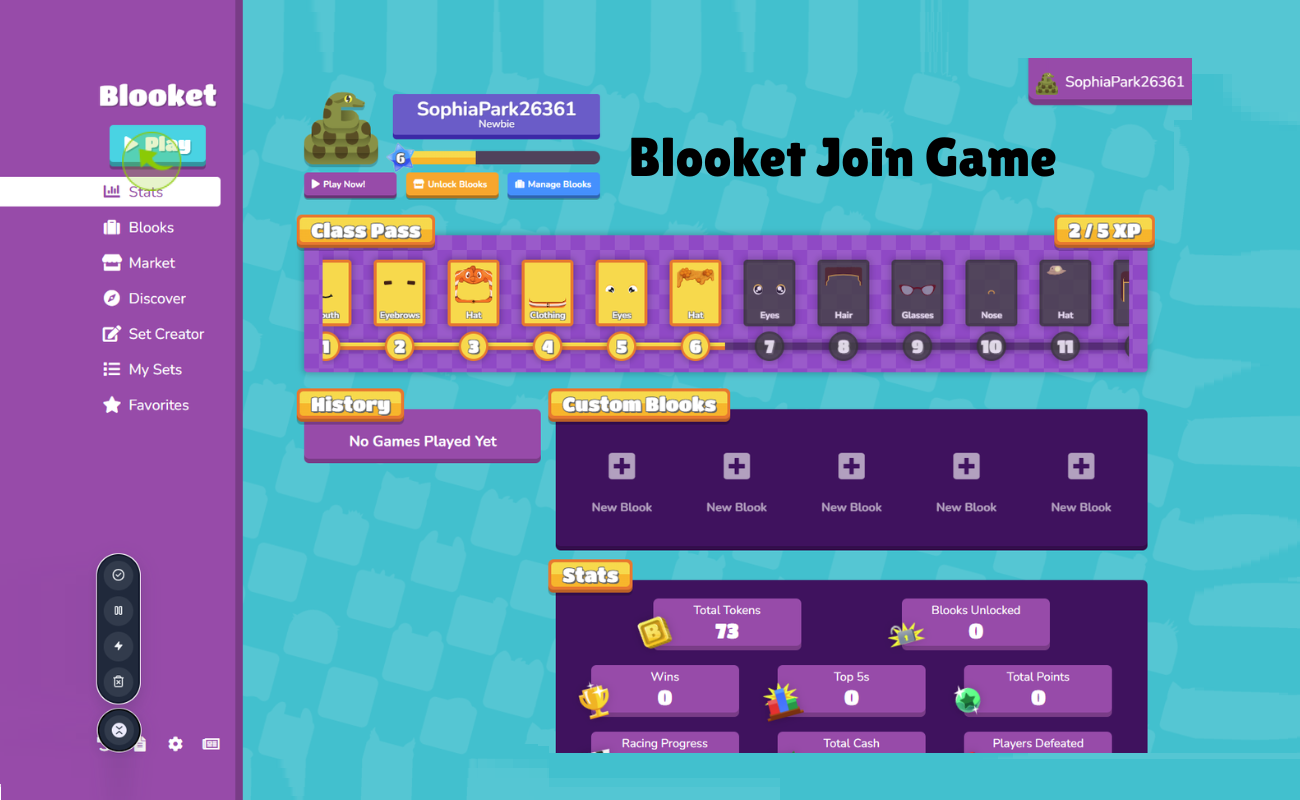
Looking for a simple Blooket join game guide? They require only a seven-digit code and a Web browser. Blooket is an online learning platform that provides teachers with the ability to create quiz games and students to answer questions in exchange for rewards.
This article will instruct you on how to join, host, and play. It also includes topics such as game modes, player limits and answers to frequently asked questions. If you are a student with a code for your first session, or a teacher looking for an activity, you will find all this below.
What Is Blooket?
The Blooket game-based learning platform is designed for classrooms or groups. The teacher selects or creates a set of test questions and selects a game mode. Students log in using a code and work independently on the questions. The points, coins or other rewards are given for correct answers, depending on the game. It makes revision a game and helps students focus.
How Does Blooket Work?
This is a basic rundown of a Blooket session:
- Select a question set. Explore it in the Discover section, create your own or import.
- Choose a game mode. These can range from Tower Defense games, to Factory games, to Gold Quest.
- Host the game. Display the game code and on a big screen.
- Answer and progress. Students reply to questions to progress. Rewards will vary by mode.
- Check the results. Teachers receive scores reports highlighting areas for further practice.
How to Join a Blooket Game
The registration process is quick and simple and only takes a minute or two. You can join a Blooket game from the phone, tablet, or computer.
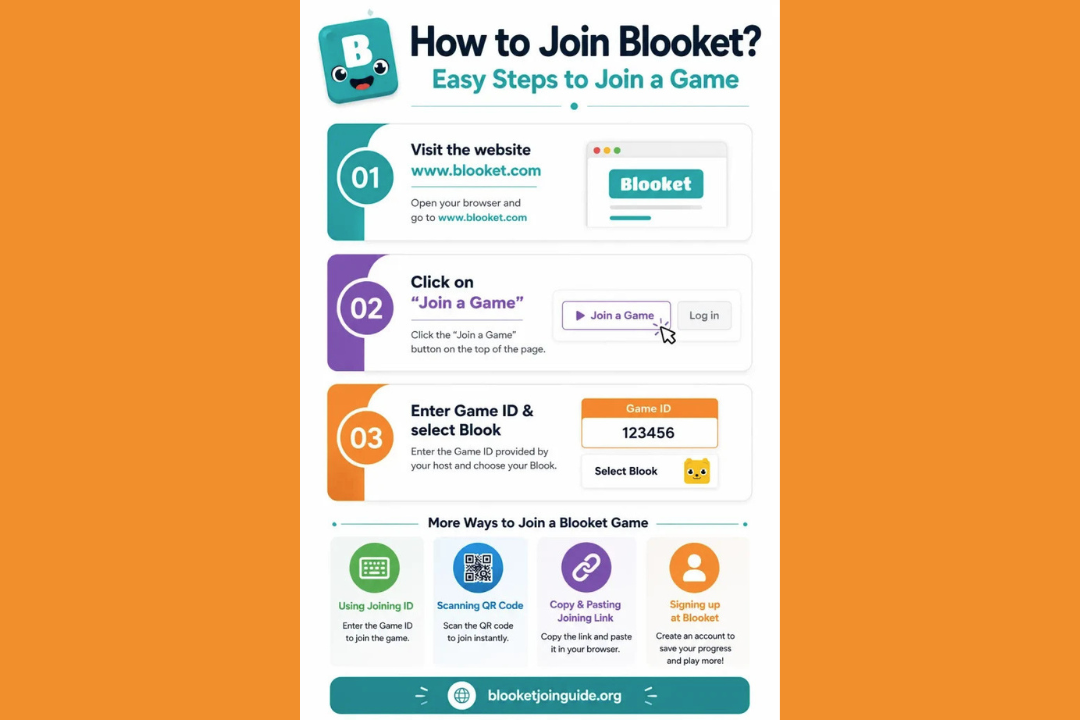
Method 1: Use a Game Code
- Open play.blooket.com in your browser.
- Enter your teacher’s 7 digit Game ID.
- Click Join.
Method 2: Scan a QR Code or Use a Link
Your host may display a QR code on the screen. Use your device to scan it with the camera, or if your teacher provided you with a join link, you can tap on that. Both take you straight to the game.
Method 3: Choose Your Name and Blook
- Enter a nickname. If the host turns on random names, the game will give you one.
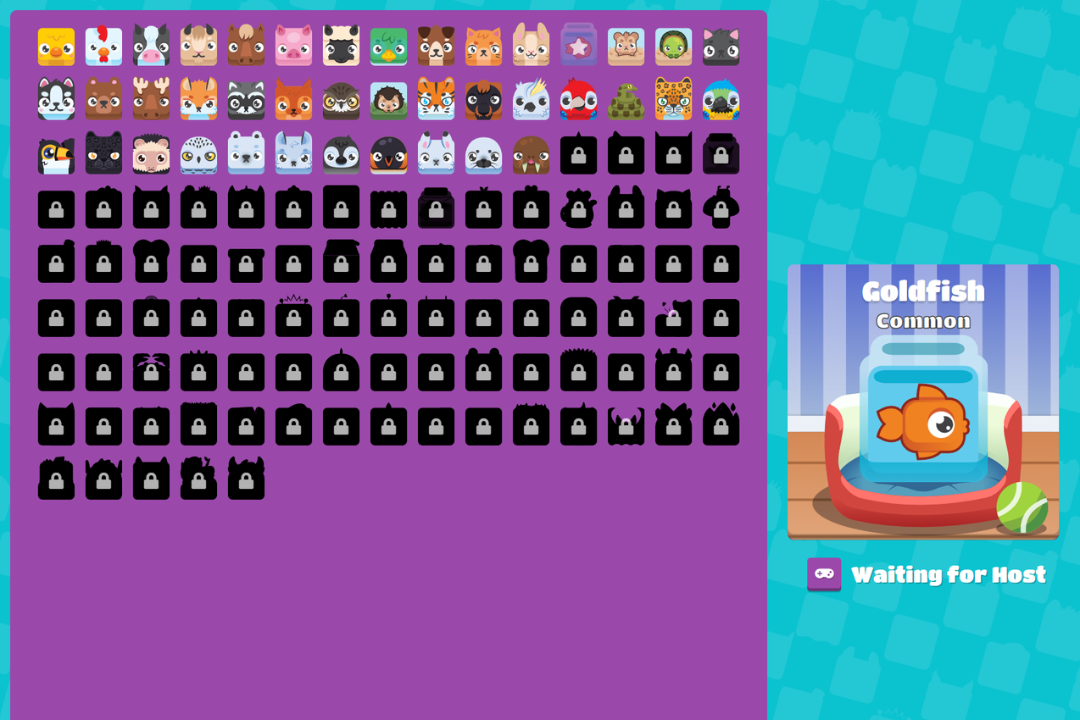
- Select a ‘Blook’ (game character).
- Do not press Start until the teacher has done so.
Log In, Sign Up (optional)
No account is required to play in a live game. Useful if you want to save progress or make sets of questions or host games. The registration form can be found on Blooket’s website. Choose Sign Up, enter your email address, select your username, and indicate if you are a student or a teacher.
How to Host a Blooket Game
To host, teachers must have an account. Follow these steps:
- Please log-in and select a question set.
- Select Host and choose a mode of play.
- Adjust the settings. Time limit, late entry, random names and student accounts are all options.
- Click Host Now.
- Give the students the 7 digit code.
- When everyone has joined, click Start.
If you need students to enter proper names, turn off the random names. Makes after-game reporting easier to read.
Popular Blooket Game Modes
There is a mode to suit nearly every type of class in Blooket.
- Live modes: Gold Quest (grab gold and rob others), Tower Defense (build towers based on correct answers), Café (run a café, serving customers), and Factory (Unlock and upgrade Blooks).
- Solitaire and homework game modes: Tower of Doom (card-based dungeon game) and Crazy Kingdom (manage a kingdom, make choices).
Play alone by opening a question set, selecting Solo, and selecting a mode, and then play.
Player Limits and Age Rules
There is no cost to use a free account and there can be up to 60 players in one game. Users who are under 13 must have their parent or school’s permission before signing up.
Common Problems When Joining
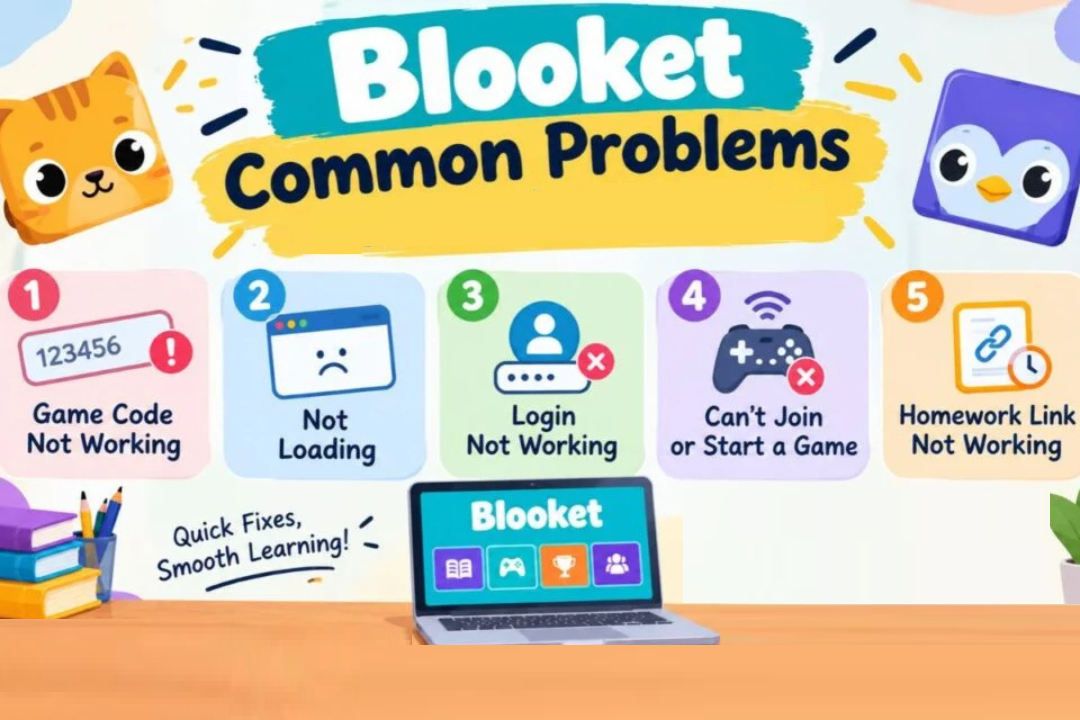
- Game not found: Make sure that you entered the 7 numbers correctly. Codes are not valid after game end by the host.
- Unable to join after start: The host might have disabled late entry. Request your teacher to turn it on.
- If the internet is blocked on the school’s Wi-Fi network: Check with your teacher or IT department for access.
Final Word
Blooket is fun and easy to join! Type the code into play.blooket.com, choose a name and Blook, and then wait for the start. Easily host a game with a few clicks for teachers. Give it a try today and find out how it works with your class!
FAQs
1.Is it necessary to register to play on a Blooket game?
No. You can not play a live game without an account. They just have to enter the Game ID of the host. Games, question sets and your progress must be hosted in an account.
2.How to enter the Blooket game code?
Visit play.blooket.com, enter the Game ID number (7 digits), and enter your Nick Name. It’s also possible to scan the QR code or tap the join link to avoid typing.
3.How many players may play in a game?
With a free account, you can play up to 60 players. To accommodate a larger class, two sessions may be conducted or students may be broken into groups. See the most recent limits in Blooket’s plan details.
4.Can I use Blooket for homework?
Yes. A question set can be set as homework and teachers can set a date and set the number of attempts. Students are then provided with the shared code or link to complete on their own time.
5.Do I need a VPN to play Blooket?
No, you don’t need a VPN to play a game or to be a server. If your school network does not allow Blooket.
Read More: Classroom.30x: Improve Interactive Learning with the Platform
